How to Collect Donations on Wix With Donorbox
Follow our step-by-step guide to add a Donorbox recurring donation form to your Wix site and start accepting more donations.
Updated on

Follow our step-by-step guide to add a Donorbox recurring donation form to your Wix site and start accepting more donations.
 Join the fundraising movement! Join the fundraising movement!
 Add us as a preferred source on Google
Wix is one of the most popular and beginner-friendly website builders out there – and with Donorbox, you can turn it into a secure fundraising hub!
In this guide, we’ll walk you through three easy ways to collect donations on Wix:
Let’s get started!
If you want your donation form fully visible on your Wix page, this is the perfect option. Here’s how to set it up.
In your Donorbox dashboard, go to “Campaigns” and find the campaign you want to collect donations for on your Wix site.
Haven’t created a campaign on Donorbox yet? This blog will walk you through the process.
Pro tip: If you want to add a recurring donation form on Wix, choose up to four different intervals to add to your form while you’re editing it:

Next, you’ll need to navigate to the “Share & Embed” page. To do so, click the “Embed Code” button on the campaign box.

Select “Embedded Form” in the top right corner.

Now it’s time to copy the embed code! You’ll find it at the bottom right of your screen, under the form preview.
Important note: Donorbox gives you the option to select between two form variations: our Classic Form and our OmniGive™ Donation Form. While both are innovative, we strongly recommend you choose the OmniGive donation form to unlock a range of extra benefits.

Copy your preferred embed code.
Go to your Wix site editor. Locate or create the page where you want to embed your donation form.
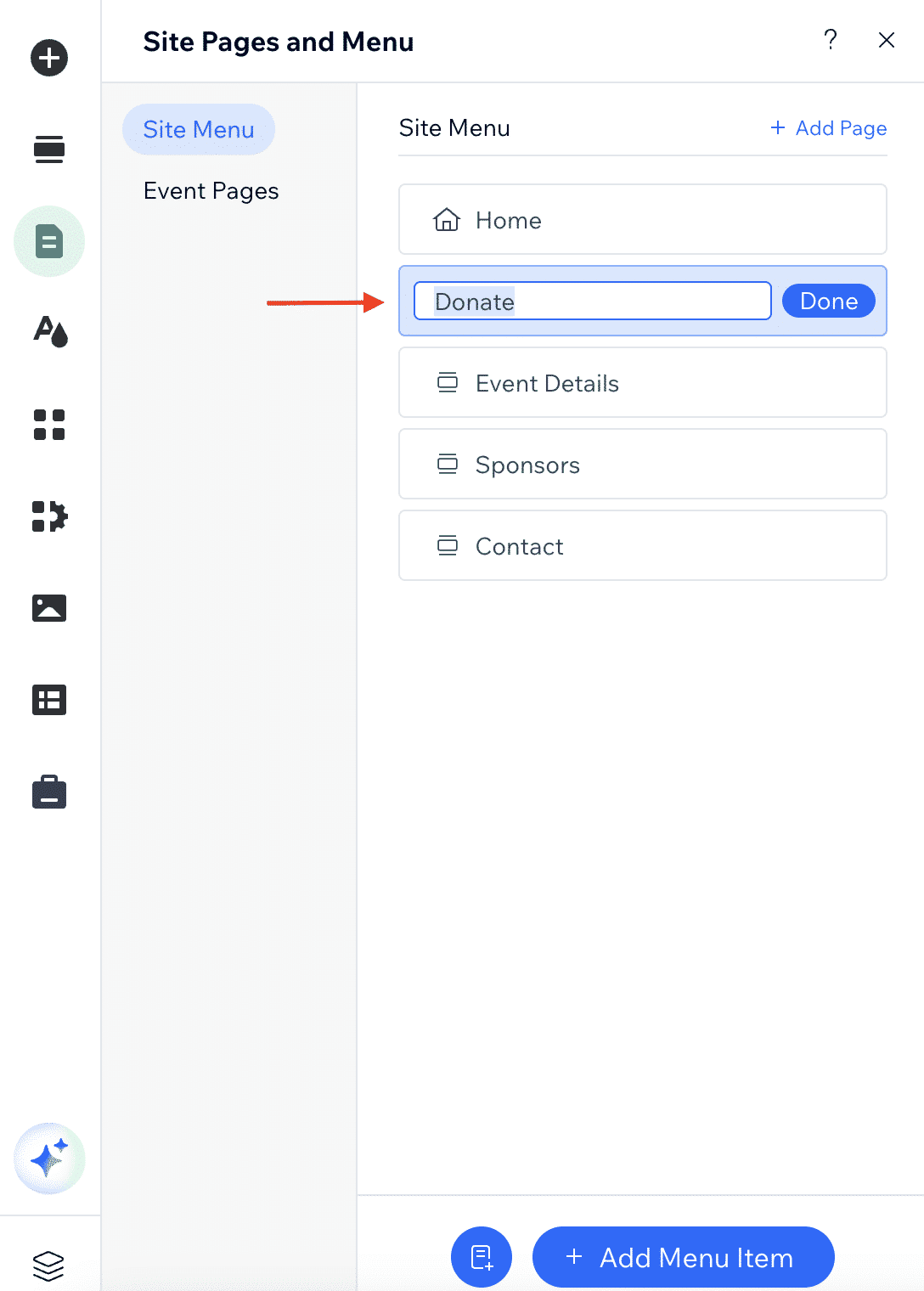
To create a page, under “Site Menu,” click the “Add Page” button, as highlighted below.

Next, type a name for your new page in the box shown in the image below and click “Done.”
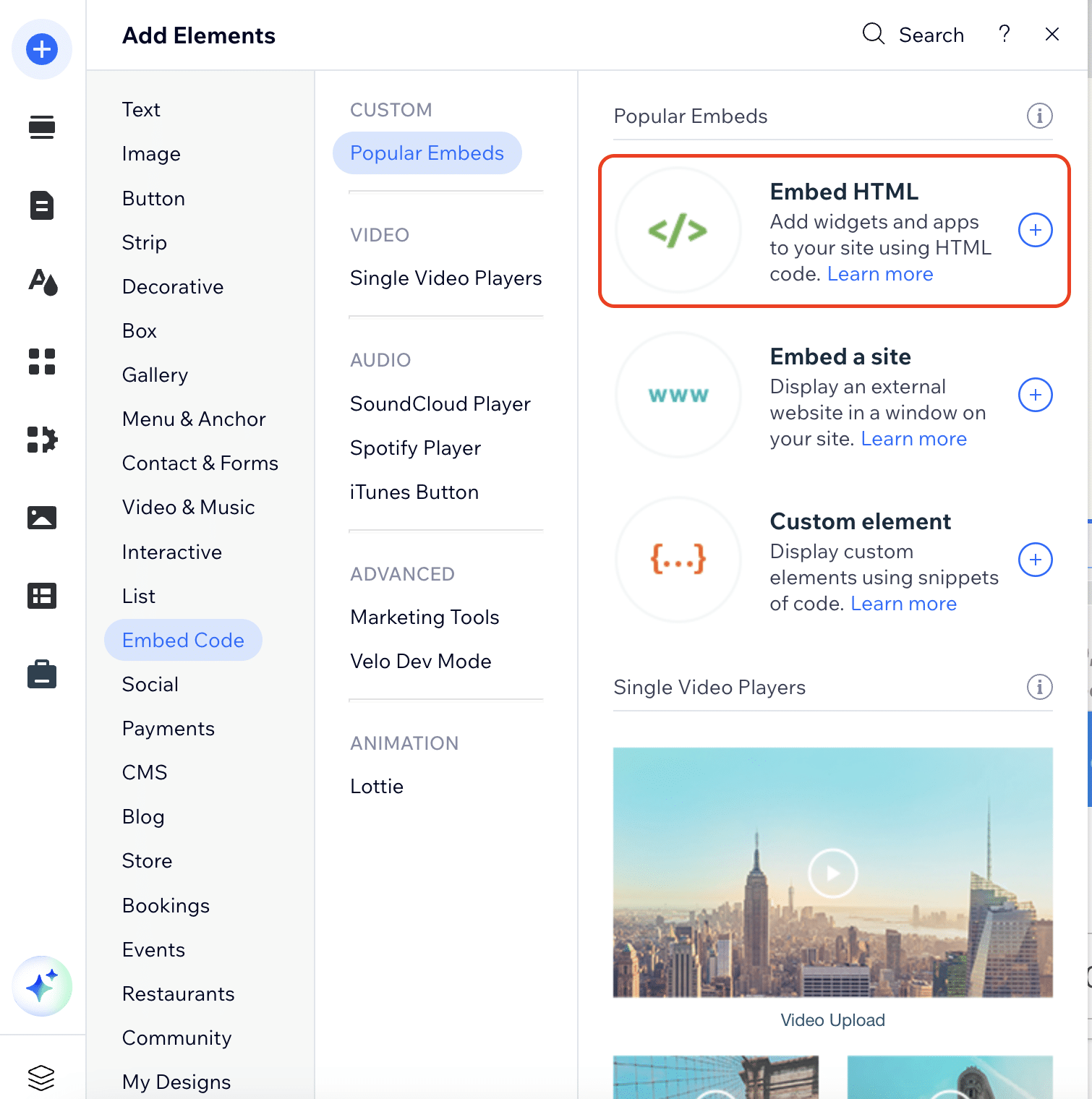
On the page editor, click the “+” (Add Elements) button on the left sidebar. Select the “Embed Code” option and under “Custom Embeds,” select “Embed HTML.”
The step is highlighted below.
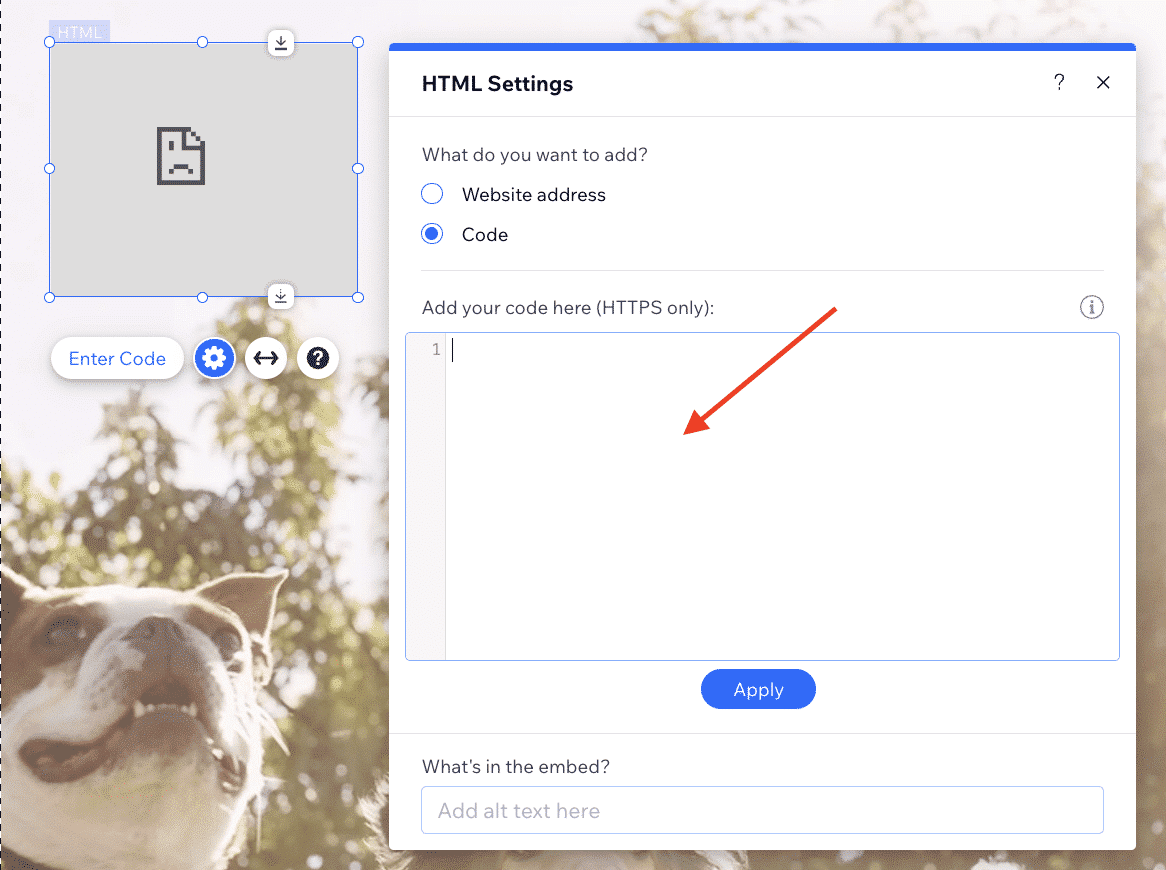
Click “+” (Add to Site). Then click on “Code” and paste the Donorbox form embed code under “Add your code here.” This is the code that you copied earlier from your Donorbox dashboard.
Next, click “Update.”
When the donation form appears, expand the code box to ensure that the entire form is visible.

Then, publish your page!
While Wix doesn’t natively support external popups the way WordPress or Squarespace do, you can simulate a popup donation form using a lightbox and embedded Donorbox form.
Once you’ve copied your embedded donation form code from within the Donorbox “Share & Embed” page, go to the Wix page where you want your popup form to live.
Click the “Add” button at the top of the left-hand sidebar.
You’ll need to create a trigger first. This can be either a link or a button so that when it is clicked, the lightbox will appear.
To add a button, click on the “Button” tab Select the type of button that you want and insert it into the page. You can style your button to your preference.

Once you’ve added your Wix donate button, you’ll need to add a lightbox.
Click the “Add” tab on the left-hand sidebar and select “Interactive.”
Pick any of the lightbox popup designs that Wix has provided. Wix offers default styling that you can edit and add your custom styling to give it a more interactive look and feel.

Now it’s time to insert your Donorbox embedded form. For this, you will first need to insert an HTML iframe inside the lightbox.
Go to the left-hand sidebar and click “Add” again.
Next, click “Embed Code” and select the option “Embed HTML” to add an HTML iframe into your lightbox.
Once you have inserted your iframe inside the lightbox, you will need to insert the donation form into the iframe. Click on the iframe, and HTML Settings will appear, as shown below.

Paste your embedded donation form code into the box. You will then see the donation form inside your lightbox.
Be sure to expand your lightbox and iframe to be bigger than your donation form. Otherwise, it may get cut off.

Top tip: You can also edit the background on the overlay and lightbox to make them transparent – so just your donation form is visible.
Once you’ve embedded your donation form into the lightbox, go back to the site menu.
Find the page where your donate button is. Select the button and click “Link” – you’ll get a popup asking you where to link it. Select the lightbox that you want to link to the button.
And that’s it! Now, when you click on the button, the lightbox containing the donation form will pop up. This mimics the behavior of a Donorbox popup donation form.
Use a Donate button that links to your secure, Donorbox-hosted campaign page.
On your Donorbox campaign page, find the campaign you want to add a donate button for. Once you’ve found it, click on the “Embed Code” button.
You’ll find yourself on the Share & Embed page. Select the “Donate page” tab in the top-left corner.
Then, copy the link to your donation page.

In Wix, click the “Add” button on the top left-hand corner, then select the “Button” tab.
Choose your preferred button style, then design and place it accordingly.
Click on the button, then select the link button underneath.

Then, add the link to your Donorbox donation page, making sure the “New window” button is selected, so your donors are redirected to your secure Donorbox-hosted page.

That’s it! Here’s an example of how your Donorbox-hosted fundraising page could look:

Raise Funds on Wix With Donorbox
Whether you’re embedding a full form, adding a simple Donate button, or mimicking a popup with Wix’s lightboxes, Donorbox gives you the tools to fundraise your way.
Sign up for free today! And be sure to check out the rest of our Nonprofit Blog for more fundraising tips and resources.


Raviraj heads the sales and marketing team at Donorbox. His growth-hacking abilities have helped Donorbox boost fundraising efforts for thousands of nonprofit organizations.


 Join the fundraising movement! Join the fundraising movement!
Subscribe to our e-newsletter to receive the latest blogs, news, and more in your inbox.